

Songs
Song Search
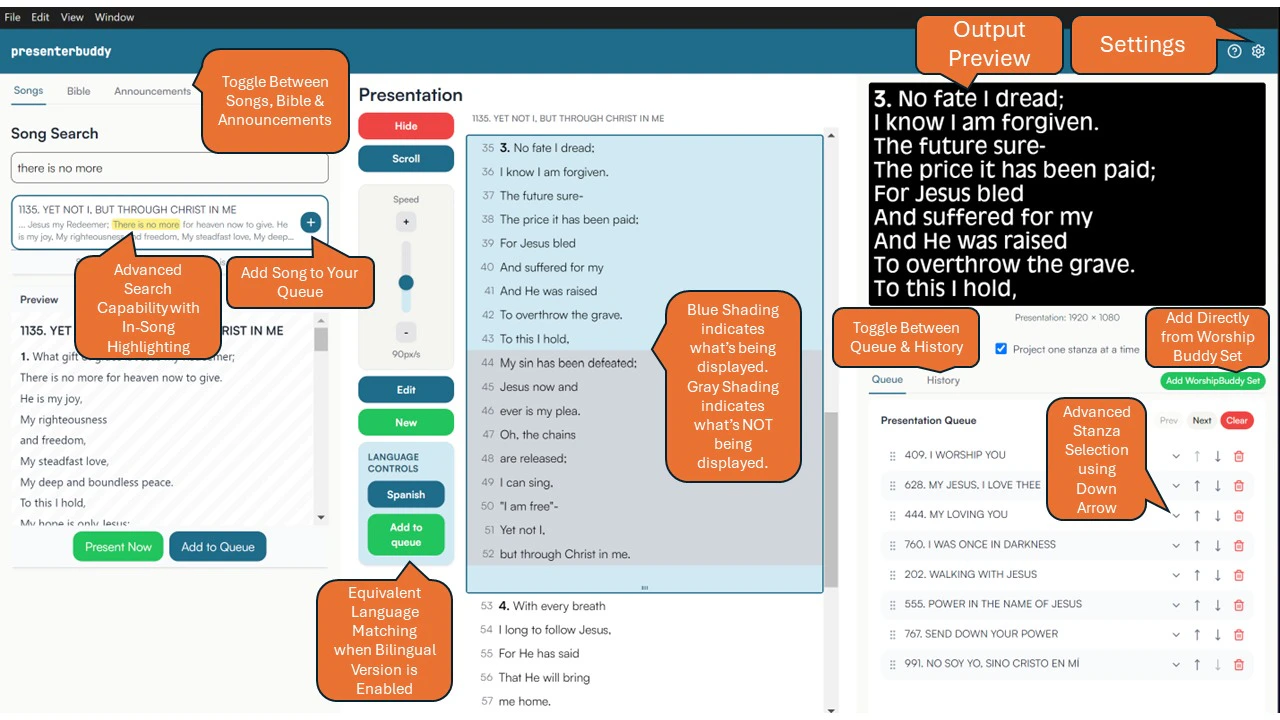
In the Song Search section, enter a song number, song title or part of a song to search and find the correct song. Double-click on the song with your mouse to automatically send it to the output / secondary screen. The preview section beneath the Song Search allows you to quickly preview and identify the correct song before presenting it. You can choose to “Present Now” or “Add to Queue” for display later in the service.Presentation Controller
Hide/Present: Toggle between Hide and Present to hide the songs. The fade duration adjustment in Settings > Appearance > Presentation allows you to adjust the fade duration when hiding a song. Scroll: Scroll feature allows for song scrolling. This is typically used on slower tempo songs. Adjust scroll speed from 10 px/s to 200 px/s. When scroll is enabled, the Gray shading easily allows the user to see what’s NOT being displayed. Edit: Edit a Song by clicking the edit button in the Presentation Controller section. New: Add a New Song when a song is being displayed in the Presentation Controller or by going to the top menu bar and clicking Edit > New Song.Control + N is the keyboard shortcut to do the same.
To denote a verse, chorus or bridge, use asterisks as depicted below before and after the song stanza number or heading that you want displayed.
Bible
Bible Search
In the Bible Search section, enter a Bible reference or a portion of the verse to find the correct Bible verse. Double-click on the verse with your mouse to automatically send it to the output / secondary screen. The preview section beneath the Bible Search allows you to quickly preview and identify the correct verse before presenting it.Presentation Controller
Hide/Present: Toggle between Hide and Present to hide the verses. The fade duration adjustment in Settings > Appearance > Presentation allows you to adjust the fade duration when hiding a verse. Scroll: Scroll feature allows for verse scrolling. Adjust scroll speed from 10 px/s to 200 px/s. When scroll is enabled, the Gray shading easily allows the user to see what’s NOT being displayed. Stanza Selection: Click anywhere on the Bible verse to select the entirety of the verse for display. One Bible verse is the equivalent of one stanza. The blue shading easily helps you identify what is being displayed and the gray shading denotes what is NOT being displayed. Line Selection: Line selection allows you to select a specific line and display that line and onwards in the output screen. Blue Bar / Stanza Resizing: Stanzas can be resized by clicking and dragging the bottom portion of the stanza with your mouse.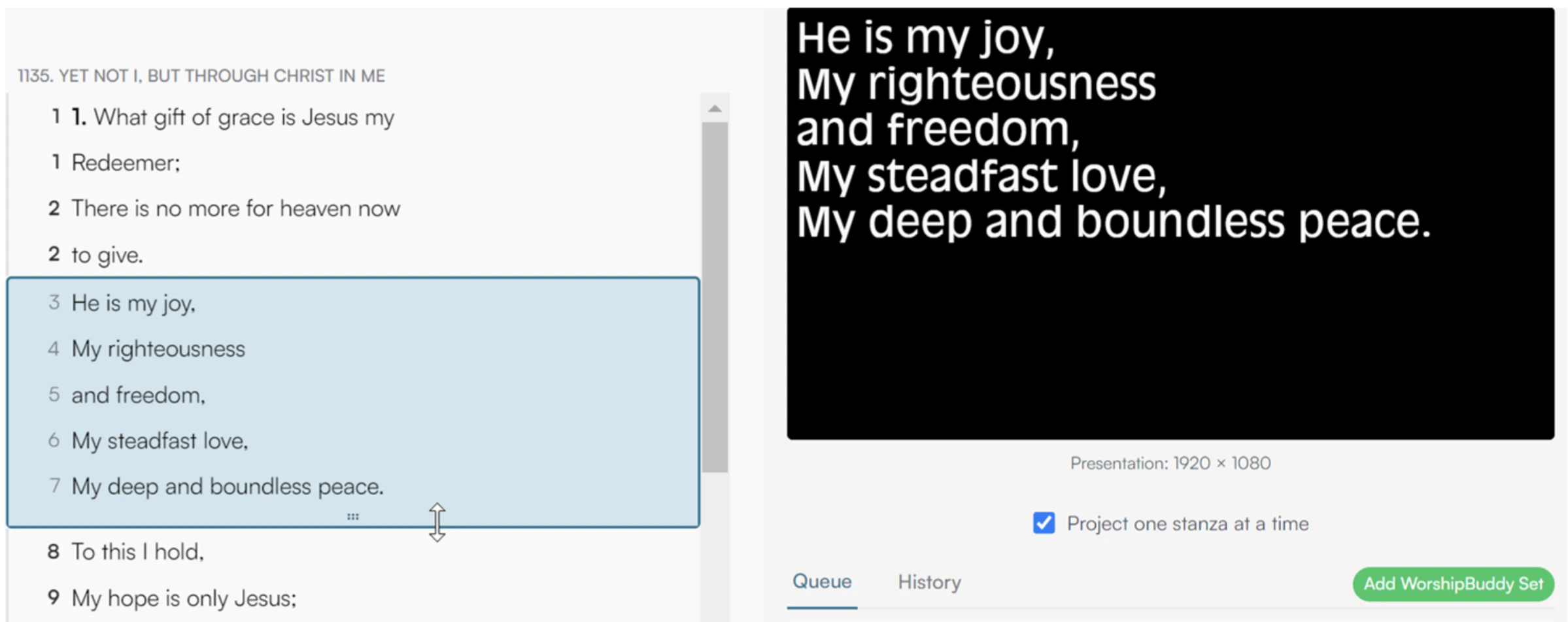
Bible Versions
PresenterBuddy comes preloaded with 7 Bible versions:- King James Version
- Reina Valera 1960 (Spanish KJV Version)
- New International Version
- English Standard Version
- New Living Translation
- New American Standard Bible
- Amplified Bible (2015)
Presentation Management
Check the “Project One Stanza at a Time” box to toggle between presenting one stanza at a time or presenting the entirety of the song.Presentation Queue Management
- Search any song and add it to your Presentation Queue using the + button near the song search result.
- Click “Add WorshipBuddy Set” to add the Live Set ID that was created by the Worship Leader in WorshipBuddy.
- Rearrange items in your queue by clicking the 6-dotted pattern and dragging with your mouse.
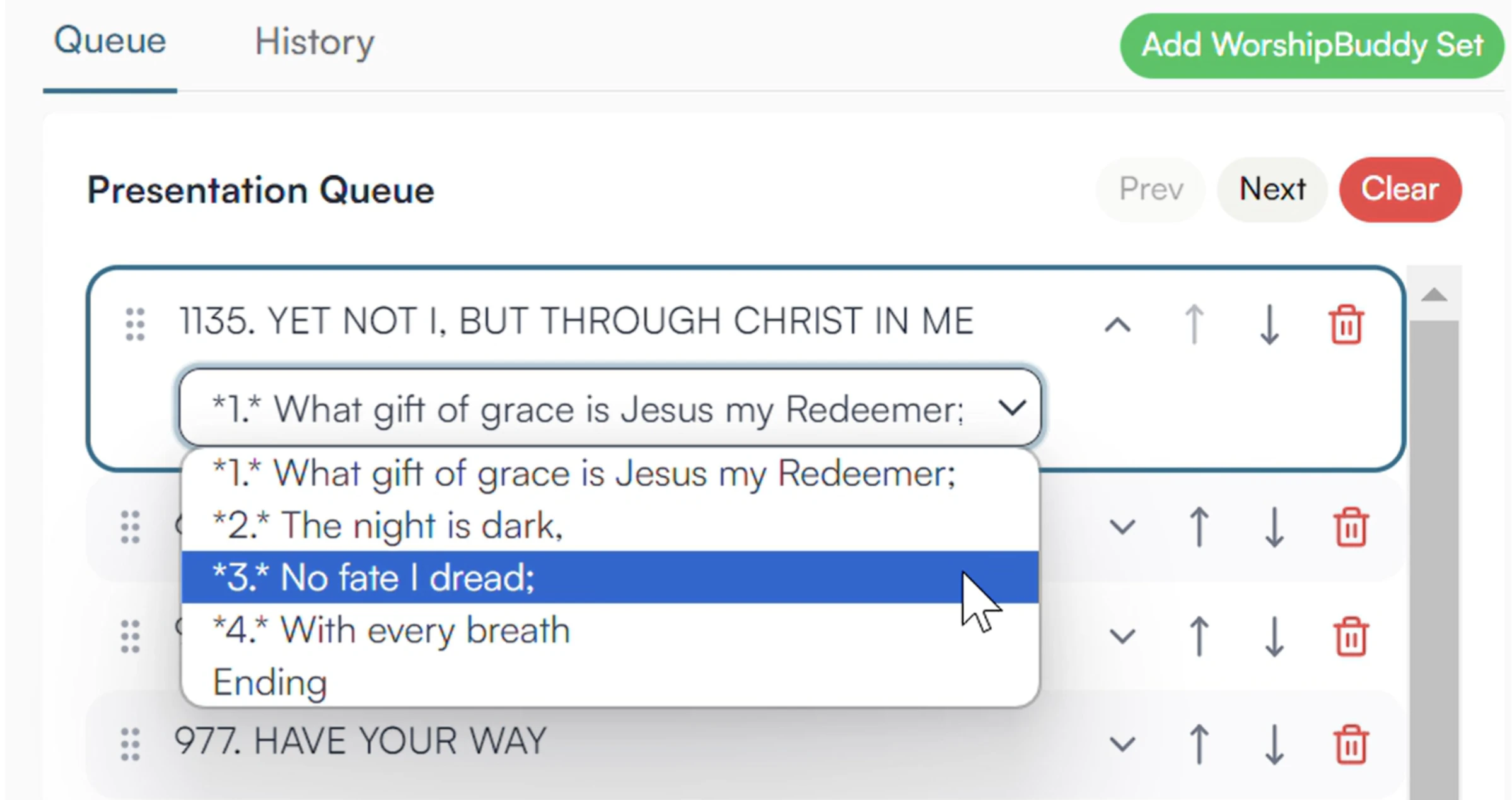
- You can queue up the correct starting stanza for each song so that it is being displayed according to the preference of the worship leader. This can be done by clicking on the downwards arrow and selecting the correct stanza.
Presentation History
The Presentation History displays every song, Bible verse or announcement that has been displayed with a date and timestamp.Announcements
- Click “Create” to create a new announcement.
- Give the announcement a title (e.g. Sunday Main Announcement).
- The announcement can be 1 slide or multiple slides.
- Enter announcements on the slide.
- Click Save.